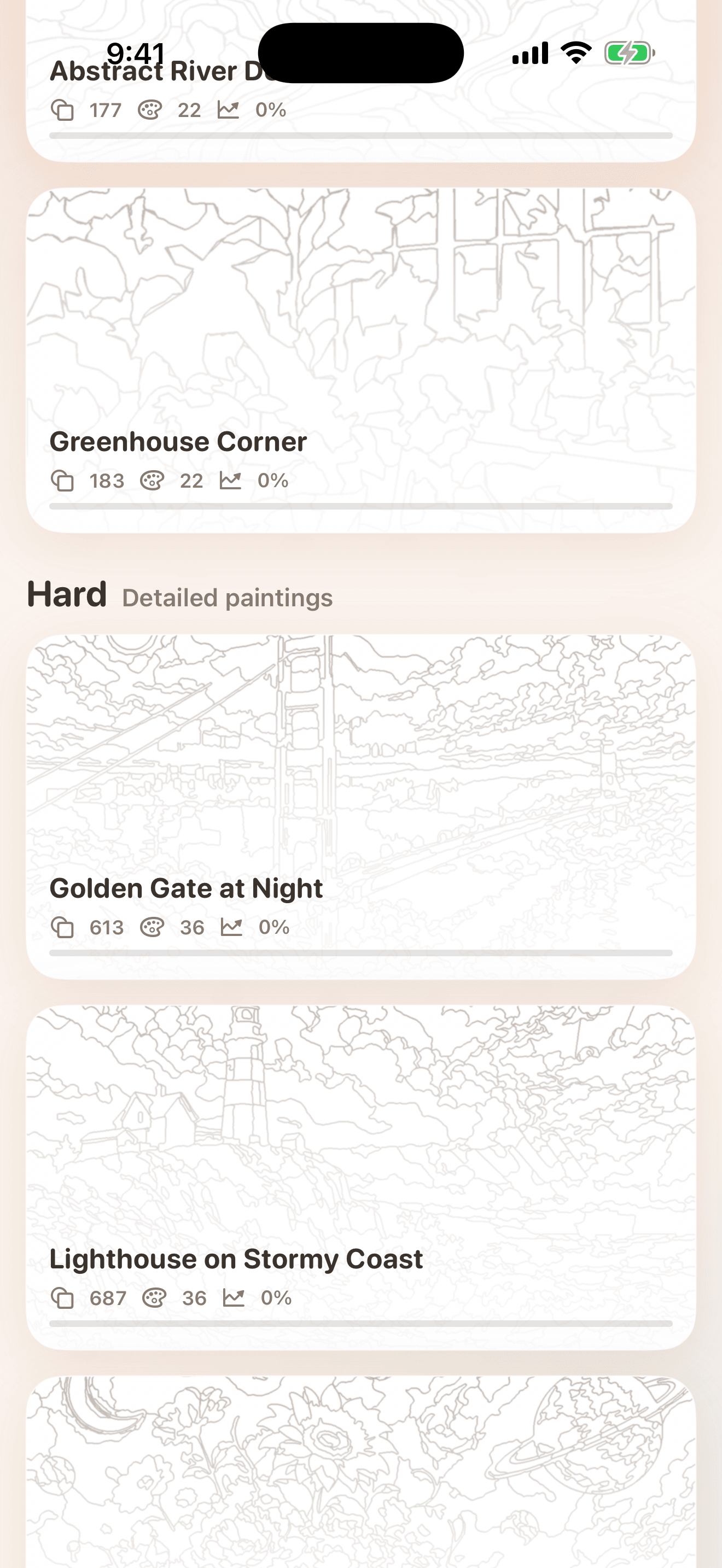
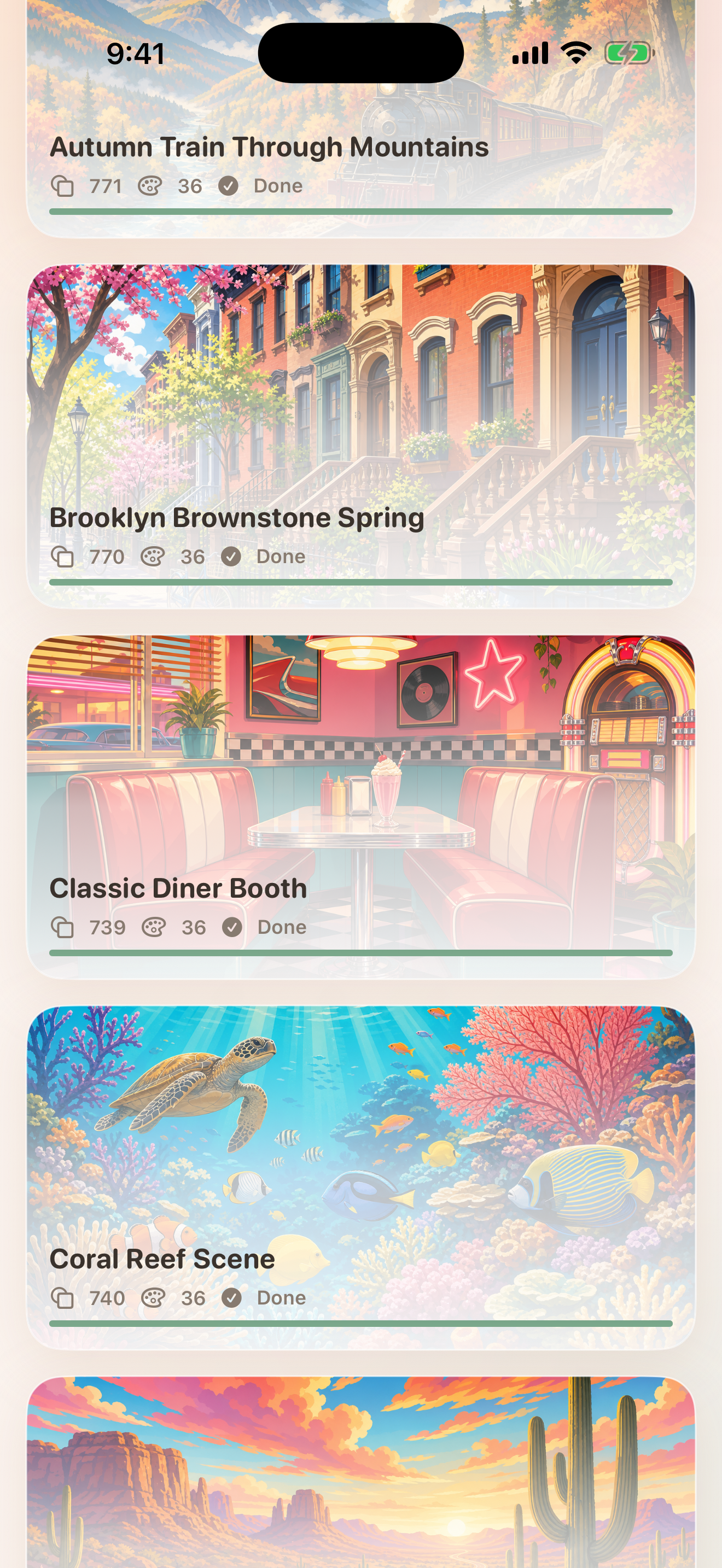
Open the gallery and pick an Easy or Hard painting. Cards show artwork, region count, color count, and saved progress.
hue. SupportHelp, basics, and contact information
Help for peaceful painting sessions.
hue. is built around a simple flow: choose a painting, zoom into numbered regions, tap to paint, and come back later with progress saved locally.
Quick guide
Using hue.
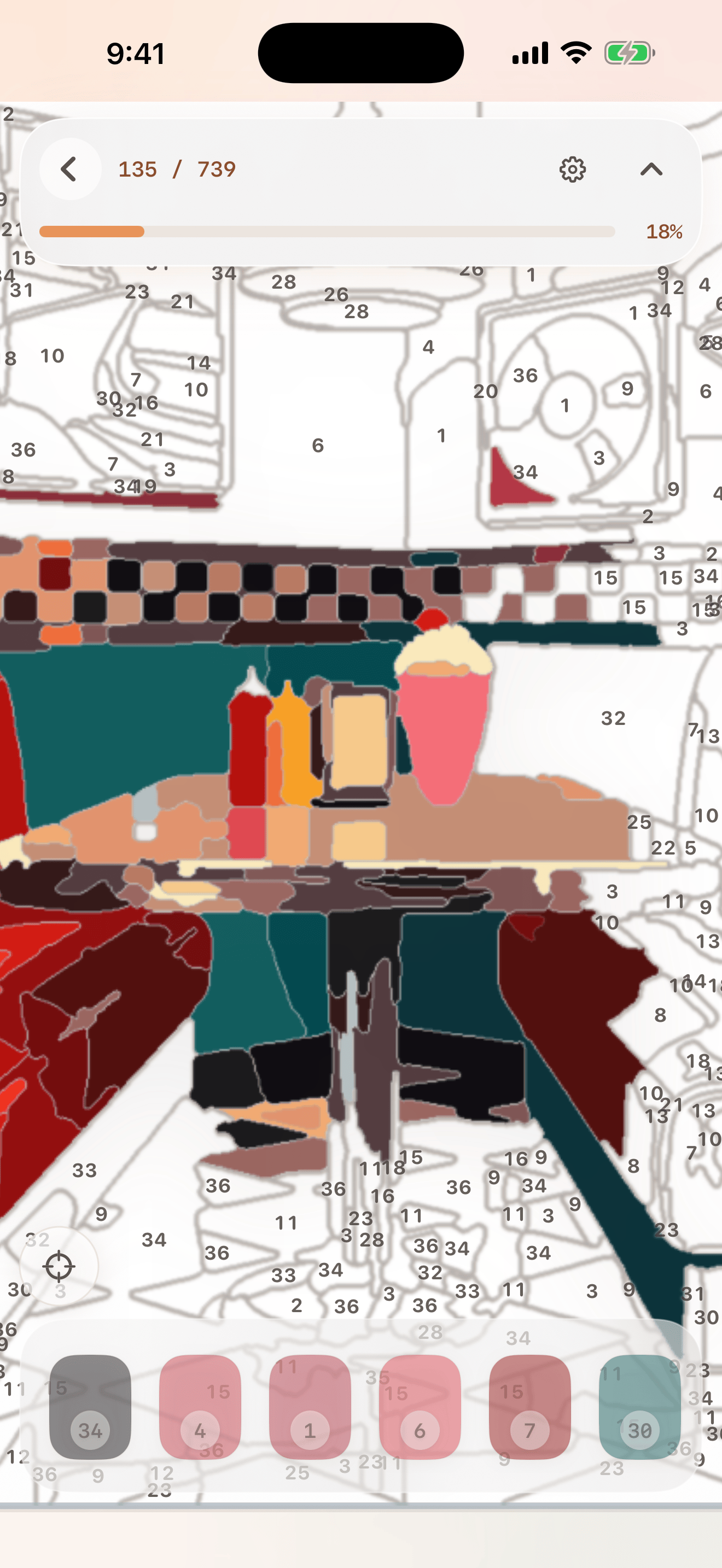
Pinch to zoom and pan around the artwork. Number labels appear when the canvas is close enough to paint comfortably.
Auto mode fills any tapped unpainted region with its correct color, which is the easiest way to relax.
Pick mode lets you choose a color from the palette, then paint matching regions for a more puzzle-like session.
Use Find Remaining near the end of a painting to jump to the next unfinished region without hunting around the canvas.
Progress saves locally, so you can leave a painting and return later from the gallery.
Visual guide
Gallery, canvas, and completion
These screens show how hue. moves from choosing artwork to detailed painting.
Troubleshooting
Things to try first
Zoom in farther. hue. keeps labels dynamic so the artwork stays clean at low zoom and readable up close.
In Auto mode, hue. fills tapped regions with the correct color. In Pick mode, confirm the selected color before tapping.
Use Find Remaining. If a color is selected, it helps locate an unfinished region for that color.
Progress is local-only. hue. does not use accounts, cloud sync, or backend project storage.
Use the restart/reset option for that painting and confirm the action before clearing progress.
The first public version uses a curated local painting library and does not include user-generated image creation.
Contact
Still need help?
Email info@bigpantsapps.com and include your device model, iOS version, app version if available, the painting name, paint mode, and a short description of what happened.
For privacy details, read the hue. privacy policy.