Open the app, create a new banner, type your message, choose your text and background colors, then save it for later or show it right away.
Flash Sign Banner Support
Help, basics, and contact information
Help for making signs that are easy to read.
Flash Sign Banner is built for quick full-screen messages. This page covers the basics and gives you a way to reach us if something is not working as expected.
Quick guide
Using Flash Sign Banner
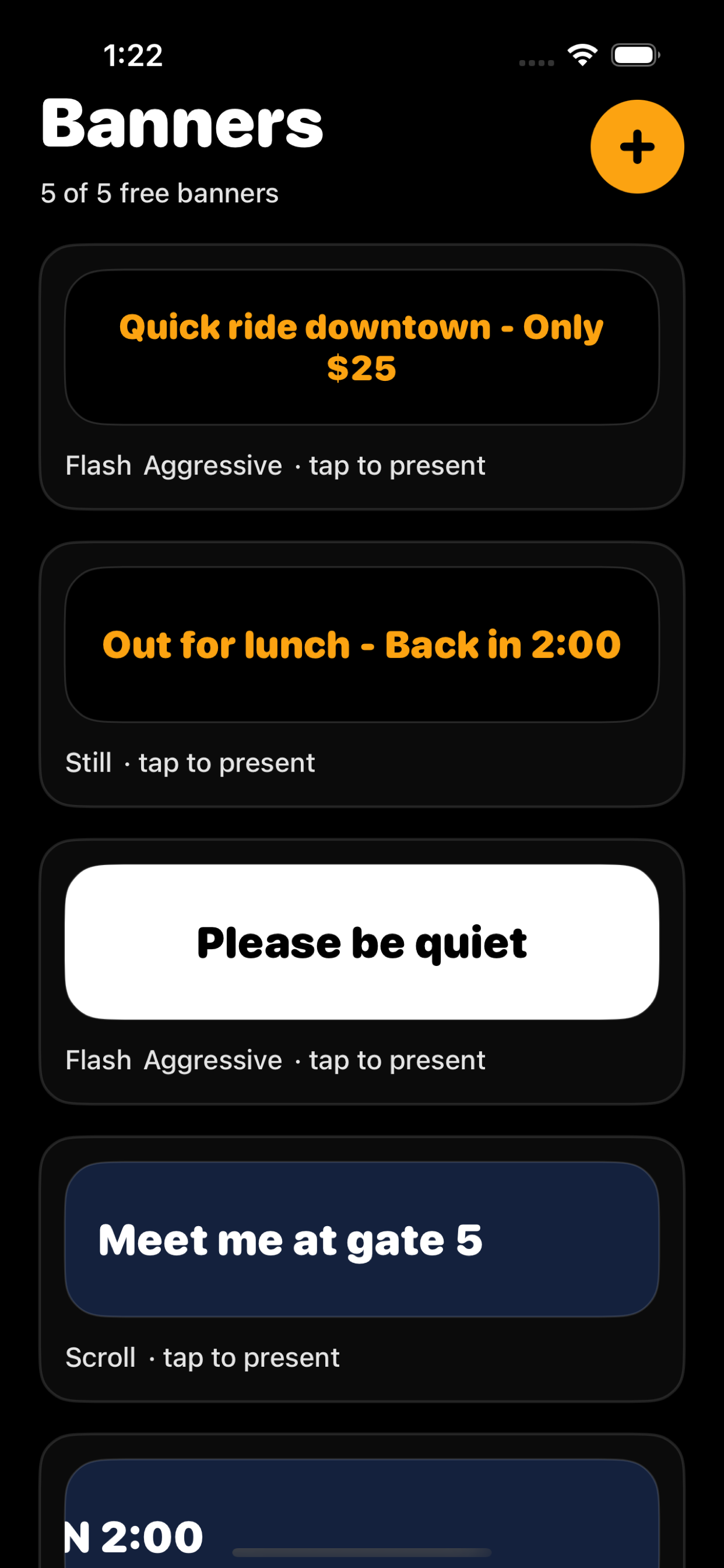
Tap a saved banner to show it full screen. Use large, short messages for the best readability across a room or crowd.
On iPhone, say Hey Siri, show a sign in Flash Signs or Hey Siri, make a sign in Flash Signs. When Siri asks for the text, say the message you want shown. Flash Signs creates the banner and presents it full screen.
If Siri does not recognize the phrase yet, open Flash Signs once, then check the Shortcuts app for the Flash Signs action. You can add your own shortcut phrase there.
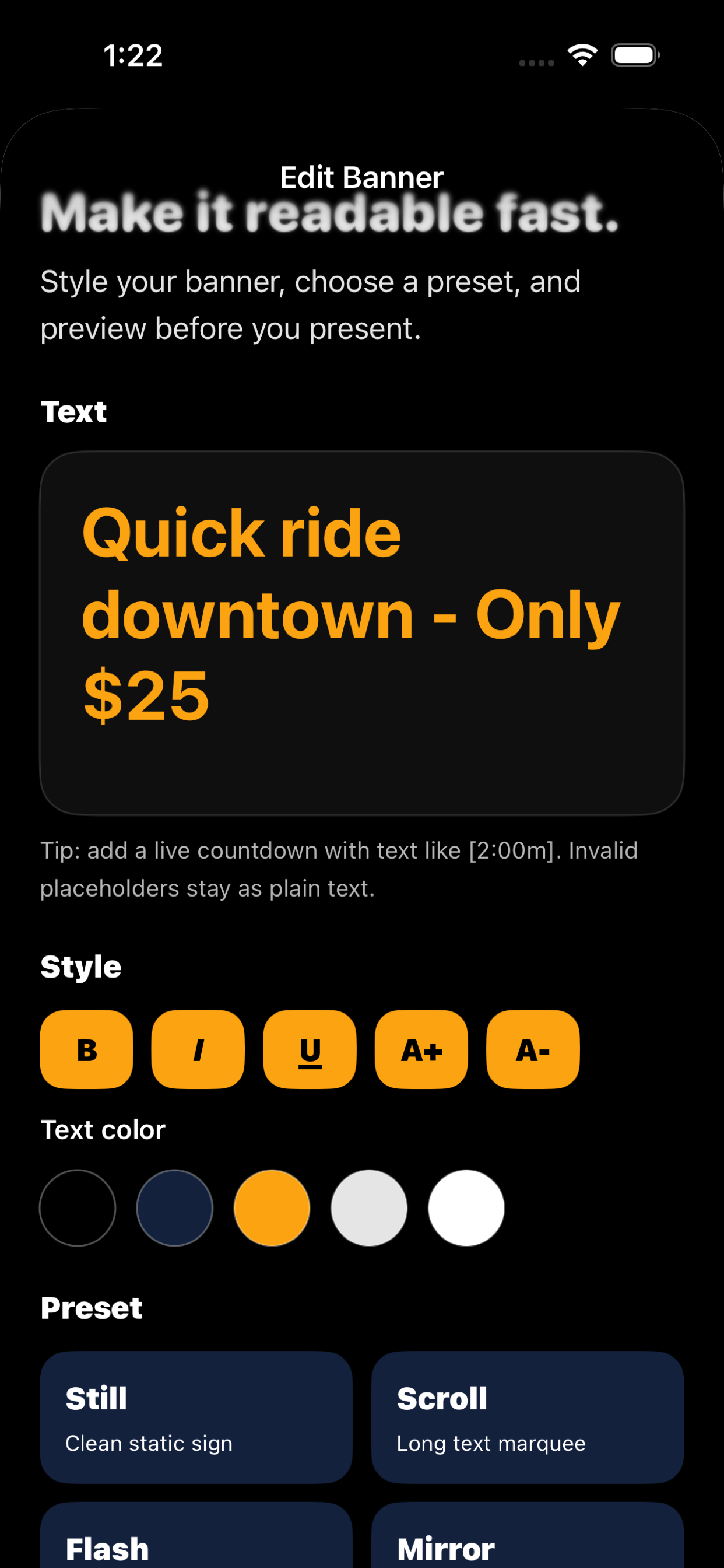
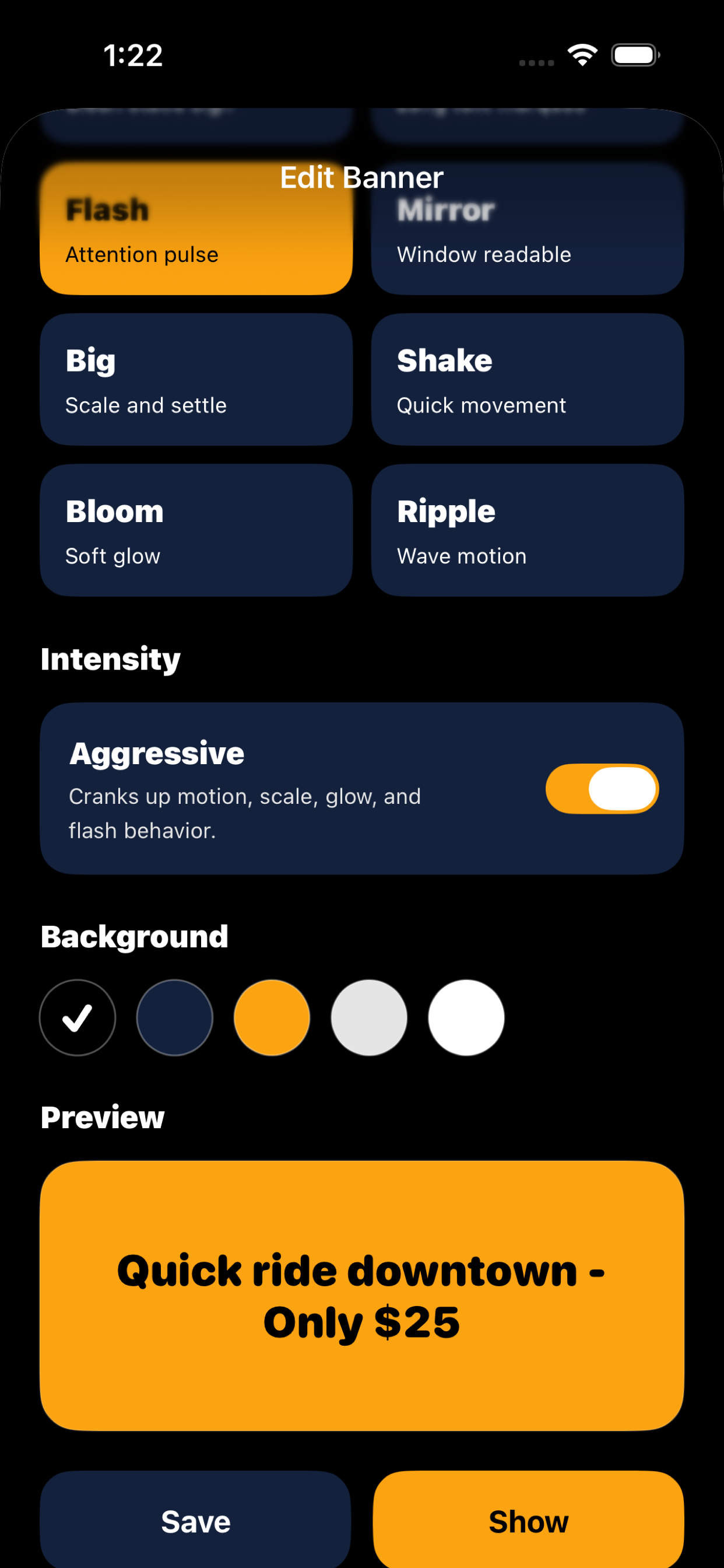
Use Still for simple signs, Scroll for longer text, Flash for attention, Mirror for glass/window use, and the motion presets when you need extra visibility.
Countdown placeholders can be written inside a message, such as Back in [2:00m]. The countdown updates while the banner is presented.
Short words, high contrast, and fewer lines usually work best. If people need to read it quickly, make the message simpler.
Visual guide
Create, edit, and present banners
These screens show the core flow: choose a saved banner, style it, then preview and present it full screen.
Troubleshooting
Things to try first
Try a shorter message, a larger font size, and a high-contrast pair like gold on black or black on white.
Check the placeholder format and keep it simple, for example [2:00m]. If it still behaves unexpectedly, send us the exact text you entered.
Make sure Siri is enabled for the app, then say Hey Siri, show a sign in Flash Signs. Siri should ask for the banner text before opening the app. You can also try Hey Siri, make a sign in Flash Signs.
The free version supports up to five saved banners. Unlimited saved banners are available through Apple in-app purchase.
Contact
Still need help?
Email info@bigpantsapps.com and include your device model, operating system version, app version if available, and a short description of what happened.
For privacy questions, read the Flash Sign Banner privacy policy or use the same email address.